
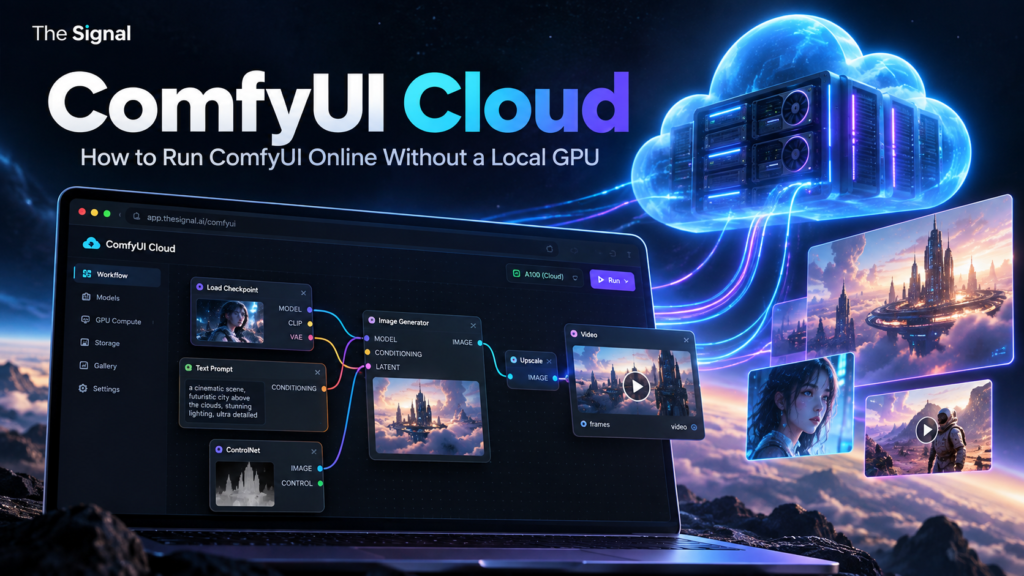
TL;DR: Comfy Cloud is the official hosted version of ComfyUI. It lets you open ComfyUI in a browser and run workflows on remote GPUs instead of relying on your own graphics card. New users can try it with 5 free GPU runs, while paid plans start at $20 per month.
If you want to use ComfyUI but do not have a powerful NVIDIA GPU, do not want to manage CUDA and Python environments, or need access to heavy image and video workflows from a laptop or Mac, cloud execution is the simplest alternative to a local installation.
What is ComfyUI Cloud?
Comfy Cloud is the hosted version of ComfyUI operated by the Comfy team. The interface is still ComfyUI: nodes, workflows, models and parameters remain visible and editable. The difference is where the workflow runs. Instead of using the GPU inside your own computer, the job runs on Comfy’s cloud infrastructure.
That removes most of the setup work associated with local generative AI. You do not need to install CUDA, configure PyTorch, download every model manually or keep a GPU server running while you build a workflow.
Do you need a GPU for ComfyUI Cloud?
No. Your browser is only the interface. The actual inference runs remotely. This makes Comfy Cloud particularly relevant for Mac users, lightweight laptops, office machines and anyone whose local GPU does not have enough VRAM for modern video models.
If you already have a strong local NVIDIA GPU, cloud execution is optional rather than mandatory. In that case, compare convenience and runtime cost against the flexibility of running ComfyUI locally.
How Comfy Cloud works
You open Comfy Cloud in a browser, load or build a workflow, select the models and parameters you need, then run the graph. Building and editing the workflow does not consume GPU time. Credits are spent when a workflow is actively running.
Comfy currently says Cloud runs on Blackwell RTX 6000 Pro GPUs with 96 GB of VRAM and provides access to more than 900 pre-installed models. Many widely used custom nodes are also available, although local ComfyUI still gives you broader freedom to install arbitrary custom nodes and modify the environment yourself.
5 free runs: what does that mean?
New Comfy Cloud users currently receive 5 free GPU runs with no credit card required. A run means one workflow execution on the hosted GPU. It is not five hours of GPU time and it is not a recurring five-run monthly allowance.
This is enough to test the interface, load a proven workflow and check whether the cloud experience fits your needs before paying for a subscription.
Comfy Cloud pricing
Standard: $20 per month, or $16 per month when billed yearly. It includes a 30-minute maximum workflow runtime and is aimed at users who mainly want hosted ComfyUI with the included model library.
Creator: $35 per month, or $28 per month when billed yearly. It adds the ability to import your own models and LoRAs from supported sources such as CivitAI and Hugging Face.
Pro: $100 per month, or $80 per month when billed yearly. It adds longer workflow runtimes of up to one hour and higher API concurrency for heavier production use.
Comfy uses a unified credit balance. Credits are consumed by active Cloud GPU runtime and by Partner Nodes that call proprietary models. Plan credits and top-up credits follow different expiration rules, so check the current pricing page before making a long-term cost estimate.
What can you run?
Comfy Cloud supports image, video, audio and 3D workflows. Open models such as Wan, Flux, LTX and Qwen can be combined with proprietary Partner Nodes such as Seedance, Gemini, OpenAI image models and other hosted APIs, depending on current availability.
This is one of the main advantages of the platform: you can keep the graph-based ComfyUI workflow while mixing local-style open model pipelines with external API models inside the same workflow.
Comfy Cloud vs local ComfyUI
Choose Cloud when: you do not have enough GPU memory, you use a Mac or lightweight laptop, you want zero setup, you need heavy video workflows occasionally, or you want to open the same environment from different devices.
Choose local ComfyUI when: you already own a capable GPU, you need unrestricted custom nodes, you want full filesystem control, you need offline operation, or you run enough jobs that owning or renting dedicated GPU infrastructure is more economical.
For a deeper cost, VRAM and control comparison, read Comfy Cloud vs Local GPU: Which Is Better for ComfyUI?. For installation details, see How to Install ComfyUI on Windows, macOS, and Linux. If you are still learning how graphs, nodes and models fit together, start with the main ComfyUI guide.
Comfy Cloud for video workflows
Video generation is where cloud execution becomes especially useful. Modern video models can demand far more VRAM and system memory than image workflows. Comfy’s hosted 96 GB GPU environment can make workflows practical that would be slow or impossible on a typical consumer laptop.
Before spending credits, build from a known workflow and test short clips first. Increase resolution, frame count and upscaling only after the basic graph works. For the pipeline concepts behind this, see ComfyUI Video Workflows.
Using Comfy Cloud with AI agents and MCP
Comfy also provides a public-beta MCP connection. An MCP-compatible agent such as Codex, Claude Code, Claude Desktop or Cursor can connect to Comfy Cloud, search templates and models, submit workflows, upload input files and retrieve generated outputs.
This changes ComfyUI from a tool you operate only through the canvas into something an external AI agent can use as an execution layer. A coding agent can, for example, search for an appropriate video workflow, upload a product image, run the job on Comfy Cloud and retrieve the finished asset.
When Comfy Cloud is not the cheapest option
Convenience is the main value proposition, not necessarily the lowest possible GPU cost. If you run large workloads continuously, a dedicated GPU server or a service such as RunPod may offer more compute for the same budget, but you take responsibility for the environment, models, storage, updates and uptime.
Comfy Cloud is strongest when you value immediate access, a managed environment and the ability to work inside the official Comfy ecosystem without building your own GPU infrastructure.
How to try ComfyUI Cloud
Start with one of the official templates rather than an empty graph. Run a small image workflow or a short video with the free allowance, check how quickly it completes, then inspect the credit usage before deciding whether Standard, Creator or a local setup makes more sense.
Disclosure: This article may contain affiliate links in the future. If an affiliate link is added, The Signal may earn a commission at no extra cost to you. The current Comfy Cloud link above is a standard non-affiliate link.
Sources
Primary references: Comfy Cloud, Comfy Cloud pricing, and Comfy MCP documentation.