
MiniMax H3 can generate video and stereo audio locally in ComfyUI using its downloadable base checkpoints. Start with an official template, download its matching model components, and keep the first run short. The complete hosted 2K pipeline includes services that are not part of the local base release.
Verification: 24 October 2026. This guide is based on official model cards and ComfyUI documentation. It has not been independently tested with H3 weights. We do not claim generation times, a tested minimum VRAM requirement or an accuracy/quality comparison.
What runs locally, and what needs an API?
The MiniMax model card separates H3-Base from its context-processing and 2K regeneration services. The word “open” should not be read as a promise that every stage of the hosted product runs locally.
| Component | Role | Deployment distinction |
|---|---|---|
| H3-Base FL2VA | Text-to-video and first/last-frame image-to-video with audio | Downloadable base checkpoint. |
| H3-Base Ref2VA | Generation conditioned on image, video and audio references | A separate base checkpoint; match it to the reference workflow. |
| H3-Context-IR | Processes complex multimodal instructions into a generation context | The official system is hosted and not included in the open release. |
| H3-Regenerate-2K | Regenerates the base output at higher resolution | Official module remains hosted; a community upscaler is a different implementation. |
MiniMax describes a 768p base workflow and video up to 15 seconds. Follow each template’s supported canvas and frame controls rather than treating a permissive input field as proof of reliable longer generation. H3 Max is separately listed in MiniMax’s API catalog as a speed-focused variant post-trained by fal.ai; that listing does not mean a local H3-Base workflow automatically becomes H3 Max.
1. Prepare ComfyUI and choose the workflow
Use a working ComfyUI installation before adding H3. Our ComfyUI installation guide covers the environment and updates. Save existing workflow JSON and record your version before upgrading. The official H3 overview lists version requirements for its features; documentation may describe nodes newer than the latest stable release.
Open Template Library → Video and select the MiniMax H3 workflow matching your input. If a template or core node is missing, compare its requirements with your installed core/frontend versions and inspect startup errors. Do not install arbitrary custom-node packs to replace a missing built-in node.
| Goal | Template family | Checkpoint family |
|---|---|---|
| Generate from a written scene | MiniMax H3 Text to Video | FL2VA |
| Animate an image or connect first/last frames | MiniMax H3 Image to Video | FL2VA |
| Use references for identity, style, camera, motion or voice | MiniMax H3 Reference to Video | Ref2VA |
The existing ComfyUI 0.39 release article covers that historical update. This page covers the practical H3 workflow rather than another announcement of the same release.
2. Download the matching components
Use the template’s missing-model prompts and the Comfy-Org H3 repository. Download the files named by that template rather than mixing a task-specific transformer with unrelated encoders or VAEs. Filenames and packaging can change; preserve the selected template JSON with your model inventory.
| Component | ComfyUI directory | Example from the native R2V documentation |
|---|---|---|
| Diffusion model | models/diffusion_models/ | minimax_h3_ref2va_pruned_int8_convrot.safetensors |
| Text encoder | models/text_encoders/ | qwen3vl_32b_minimax_h3_nvfp4_awq.safetensors |
| Video VAE | models/vae/ | minimax_h3_video_vae_int8_convrot.safetensors |
| Audio VAE | models/vae/ | minimax_h3_audio_vae_fp32.safetensors |
| Optional template turbo LoRA | models/loras/ | Use the mode-specific file requested by the template. |
The native workflow instructions provide the current downloads and directory layout. After downloading, refresh the model lists or restart ComfyUI, then select the exact files on the loader nodes. An optional turbo feature can still require its file to satisfy a template’s model scan.
3. Run a controlled first test
Begin with T2V and a single uncomplicated scene. Use the template’s short duration and draft resolution; leave advanced attention patches and extra style LoRAs off. Keep the template’s sampler, scheduler and model-specific settings together. Change one variable at a time after the baseline works.
Suggested test: generate one short product shot, listen to the audio, inspect the first and last frames, and record whether the run completes. Save the output, workflow JSON, model filenames, precision, seed, resolution, duration and package versions. These are proposed verification steps, not results obtained by The Signal.
4. Write a prompt that includes sound
The official prompt guide organizes base prompts around a visual scene, an overall soundscape and non-diegetic music. Keep the action achievable within the clip. For a first test, omit dialogue so you can inspect motion and audio without also diagnosing speech.
integrated_multimodal_description: [Shot 1] A locked-off close-up of a plain ceramic cup on a wooden table. Soft morning light enters from the left. A hand gently places a spoon beside the cup, then leaves the frame. The cup stays still.
overall_soundscape: Quiet room tone and one soft metallic tap as the spoon touches the table.
non_diegetic_music: N/A
This is an original example prompt, not a generated sample or a quality guarantee. In I2V, follow the template’s alignment instructions and describe the movement relative to the supplied image. Do not assume a T2V prompt and a reference prompt use identical preparation.
5. Use the R2V template for references
For reference-based generation, load the dedicated R2V template. The native workflow documentation warns that simply placing a Reference to Video node on a T2V/I2V canvas can leave that reference unused if it does not reach the sampler. Match the Ref2VA checkpoint and follow the template’s reference-label order.
Assign one clear role to each input: identity, style, camera, motion or voice. If using a reference video’s soundtrack, check that its audio is connected separately as required by the workflow. Test a minimal reference case before combining several assets. A reference is conditioning, not a guarantee of exact reproduction.
Hardware and troubleshooting
H3 needs a diffusion model, encoder and both VAEs. A checkpoint’s download size is not its minimum VRAM requirement. Working memory also depends on precision, resolution, duration, backend and offloading. This guide establishes no tested laptop/GPU minimum; verify a short baseline on your exact system before planning production.
| Problem | What to check |
|---|---|
| Missing model | Exact loader filename, model directory and template revision. |
| Missing node | Required ComfyUI version and startup import errors; avoid substituting unrelated nodes. |
| Reference ignored | Use the R2V template and confirm the reference conditioning reaches the sampler. |
| No audio | Audio VAE selection and the final video/audio wiring. |
| Out of memory | Reduce duration/resolution, review the documented precision/backend compatibility and restart other workloads. |
| Quality changes after adding turbo or attention patches | Return to the unchanged base template, then add one optimization at a fixed seed. |
FastH3, turbo LoRAs and H3 Max are different
The FastVideo FastH3 guide documents a separate distilled checkpoint with an eight-step schedule, shared H3 encoder/VAEs, and T2V/first-last-frame support. Its Ref2VA pathway is not distilled. Keep its prescribed schedule rather than applying base-model settings indiscriminately.
A turbo LoRA attached to a base template, a FastH3 checkpoint and the hosted H3 Max API model are distinct deployment choices. Compare each on the same inputs before making speed or quality claims. No side-by-side test was run for this guide.
2K output and licensing
The official full 2K workflow combines locally deployed H3-Base with hosted preprocessing/regeneration APIs. A local community upscale workflow may be useful, but it should not be described as the released official H3-Regenerate-2K module. Label the actual path used when showing examples.
Review the current MiniMax H3 Community License and official license Q&A before commercial deployment. Downloadable weights do not imply unrestricted use. Territory, deployment and commercial conditions matter; local and hosted service terms should be checked separately.
FAQ
Is MiniMax H3 fully local in ComfyUI?
The base video/audio checkpoints can run locally. The official context-processing and 2K regeneration services are separate hosted components.
Which checkpoint should I use for references?
Use the Ref2VA family with an R2V workflow. Use FL2VA for the base text-to-video and first/last-frame image-to-video paths.
Does this tutorial prove a minimum VRAM requirement?
No. It is documentation-verified and not independently executed with model weights. File sizes and workflow settings are not memory benchmarks.
Is H3 Max the same as FastH3?
No. MiniMax’s catalog identifies H3 Max as a hosted speed-focused variant post-trained by fal.ai. ComfyUI’s FastH3 guide describes a separate FastVideo distilled checkpoint.
Sources and next steps
MiniMax H3 model card · ComfyUI H3 overview · Native workflow instructions · Prompt guide · FastH3 guide · Comfy-Org model files · MiniMax API model catalog
Continue with our ComfyUI video workflow guide for pipeline planning. Verify a saved short-file test before publishing this draft.
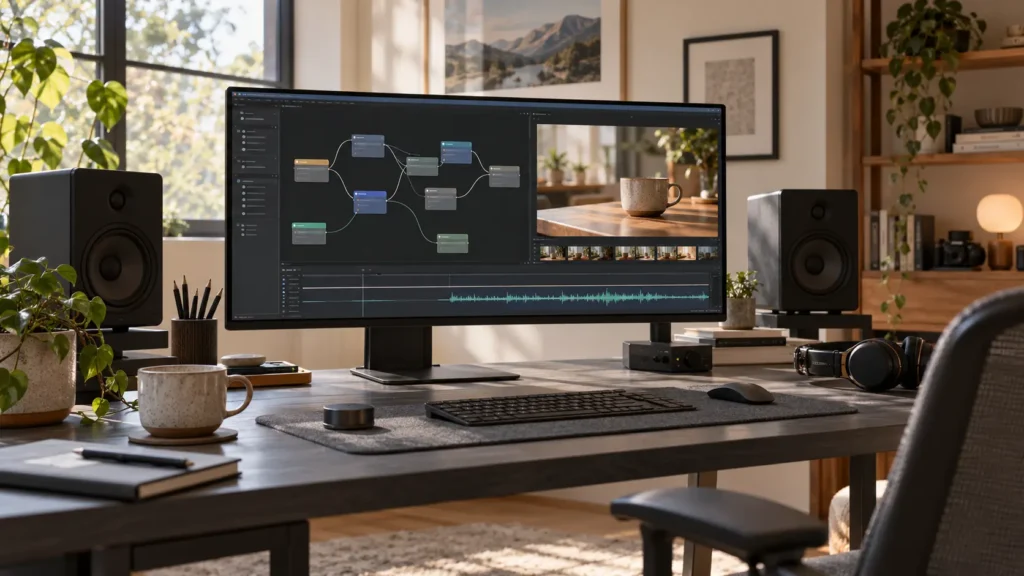
Featured image: AI-generated editorial illustration for The Signal. The interface is conceptual and does not show an actual MiniMax H3 test or generated video result.